For Windows Server 2019 or Server 2022
This article explains how to change the display language in the Microsoft Windows Server 2019 and Microsoft Windows Server 2022 operating systems.
When you install Microsoft Windows Server 2019 or Microsoft Windows Server 2022, English is set as default display language. You can add other display languages at any time.
To configure a new Windows display language, proceed as follows:
-
Create a Remote Desktop connection to your server and log in to the server as an administrator.
-
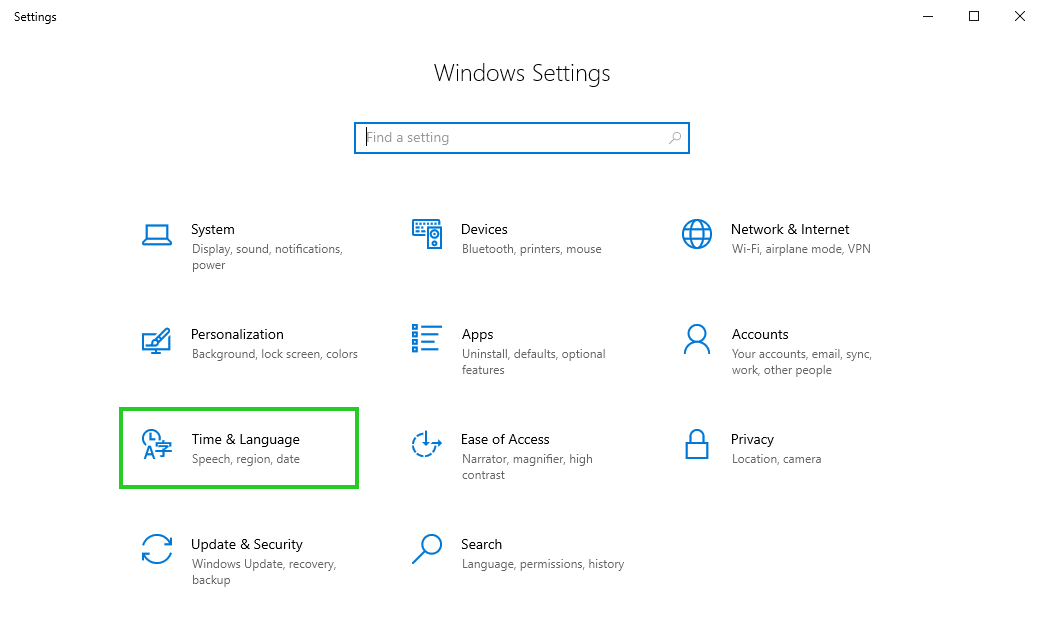
Click Start, then click Settings.
-
Select Time & Language.
-
In the left bar, click Language.
-
Click Add a language.

-
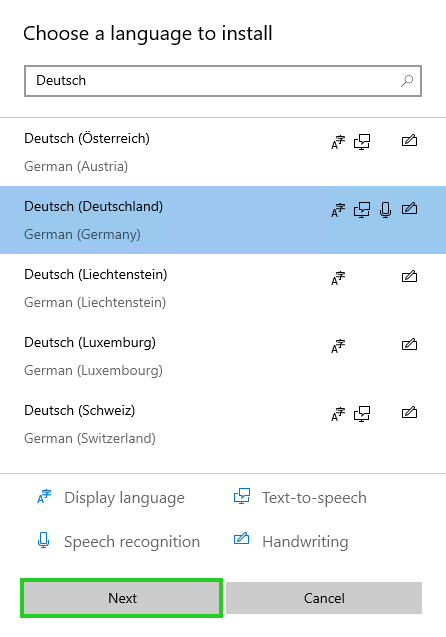
In the Choose a language to install field, enter the desired language and then select it.
-
Click Next.
-
If you are using Windows Server 2022, enable the Set as my Windows display language option. If you are using Windows Server 2019, skip to the next step.
-
Click Install.
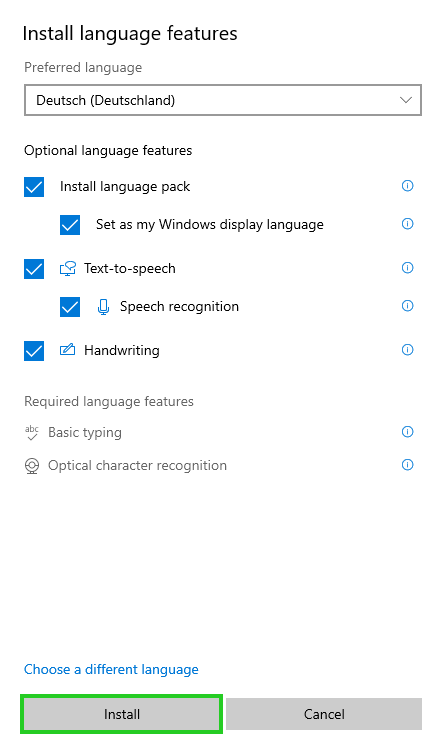
The language you chose is now installed. It will be displayed in the overview and automatically selected as the Windows display language next time you log in.
An important step we should not forget is:
You need to select "Administrative language settings" under SETTINGS --> TIME & LANGUAGE --> LANGUAGE section,
Then click on "Copy Settings" under Welcome Screen and new users accounts,
And there SELECT one or BOTH CHECKBOXES at the bottom, so the curently selected language settings will apply to ALL and NEW user accounts.

And finally asks us to restart the server.

