Server Setup: How to Set Up OpenVPN on pfSense
The easiest way to set up OpenVPN is by using the OpenVPN wizard. It will guide you through most of the process.
1. Select VPN and then OpenVPN. From there, select Wizards.
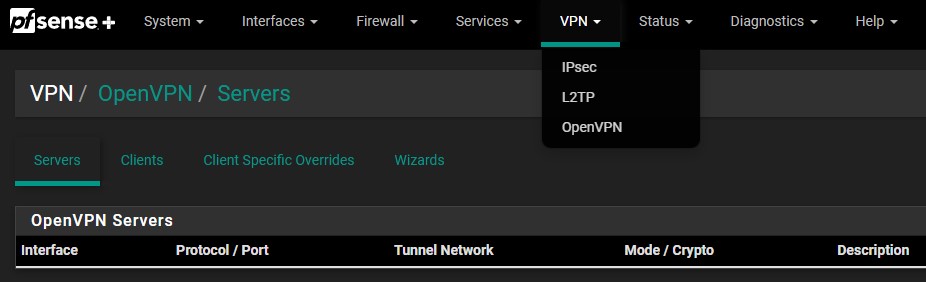
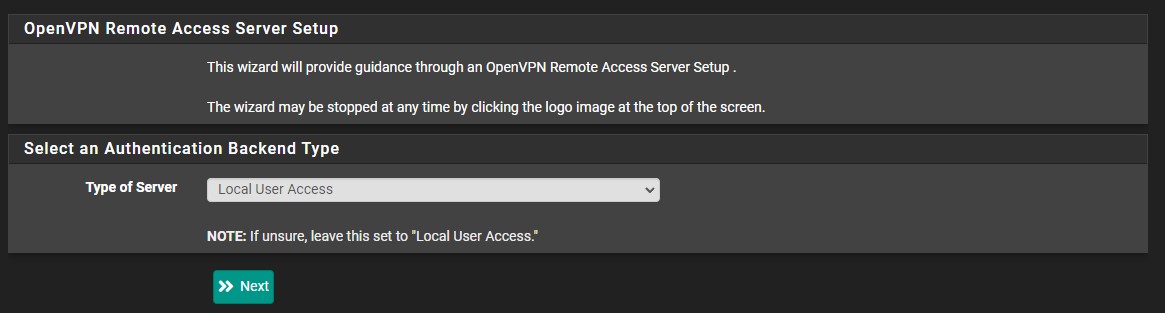
2. Keep the Type of Server as Local User Access and then select Next.
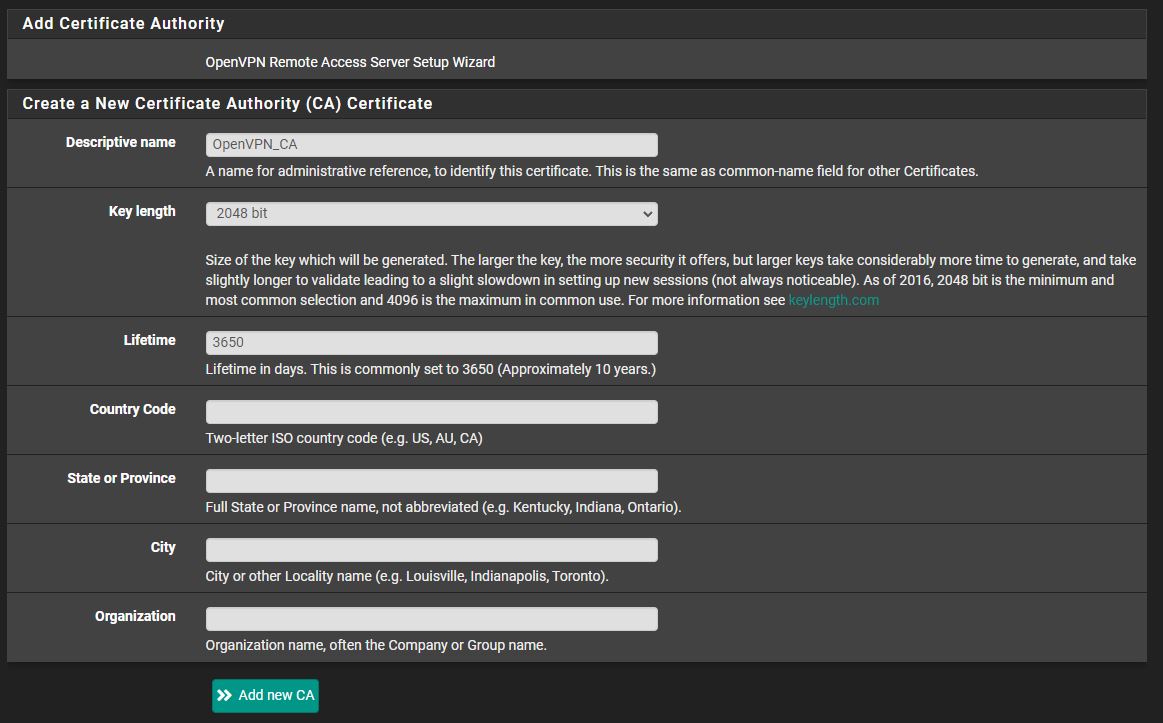
3. OpenVPN will need its own Certificate Authority. Select Add new CA and at the next screen, give the certificate a name. Populate the location information if you’d like.
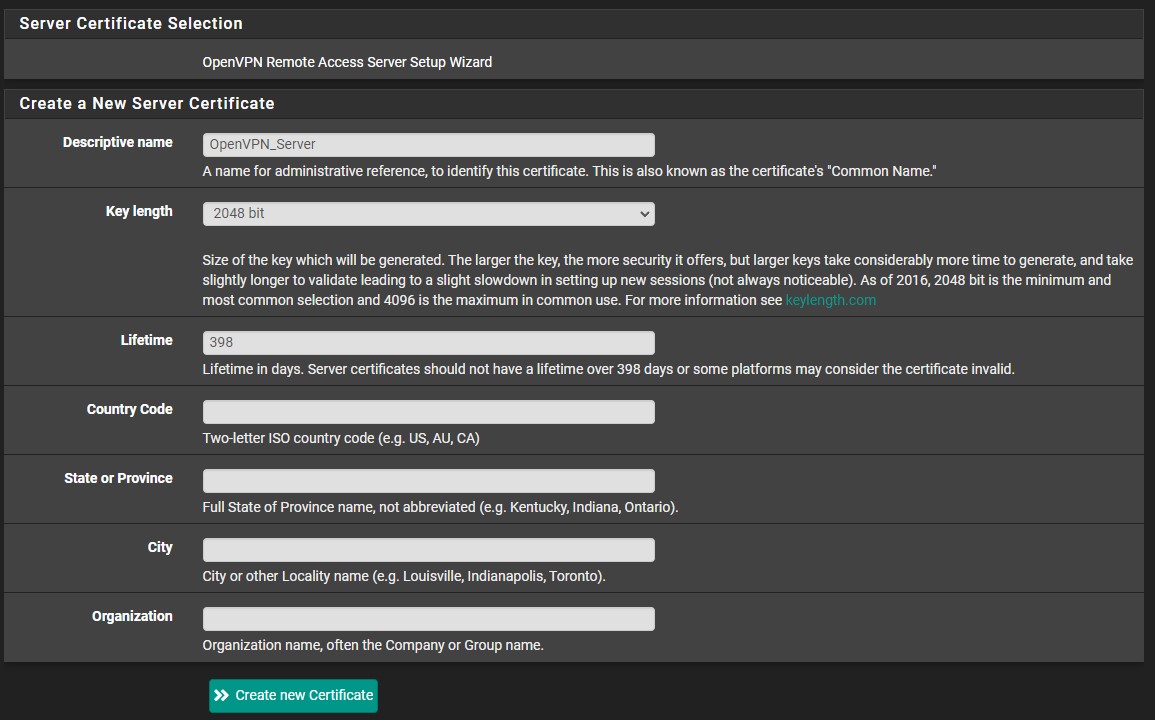
4. Next, we’ll create a server certificate. Give the certificate a name and like the last step, populate the location information if you’d like.
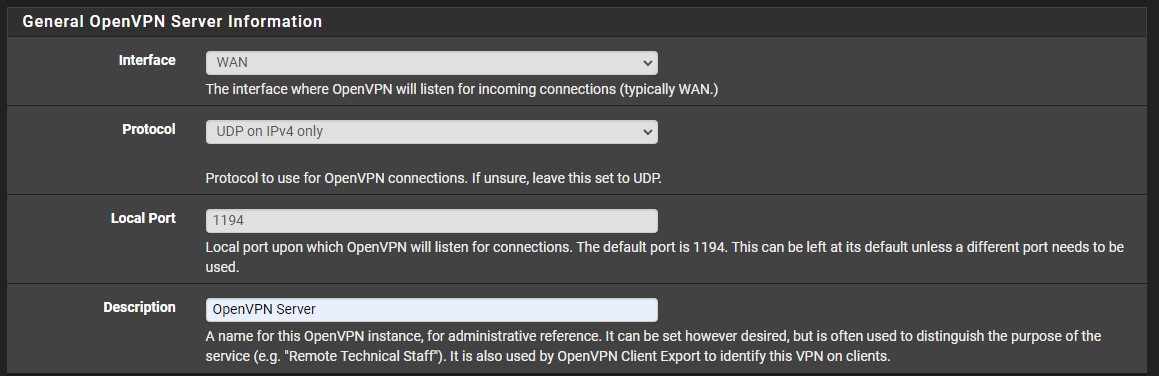
5. At the next step, give the OpenVPN server a description. Leave the interface, protocol, and local port as default (WAN, UDP on IPv4 only, 1194).
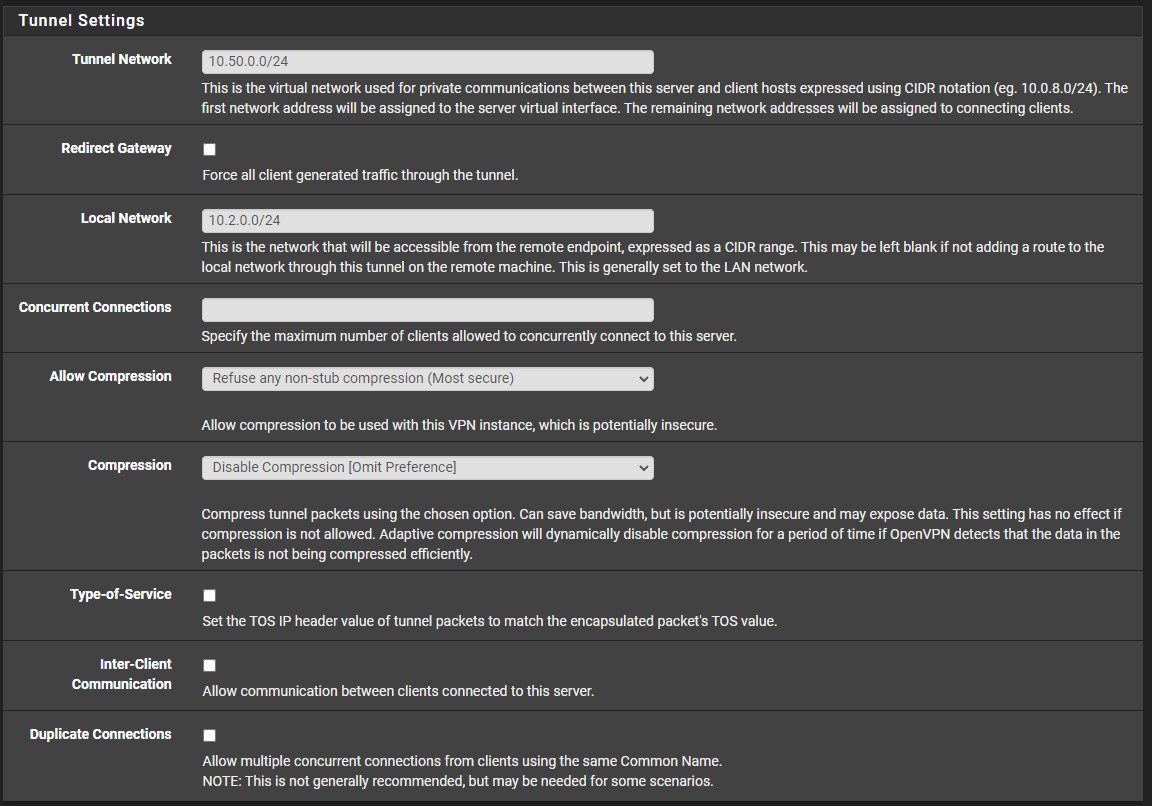
6. The cryptographic settings can stay as default and in the Tunnel Settings, ensure that you select a subnet that is NOT currently in-use.
In the Local Network section, enter in your LAN subnet as it will allow the local network to be accessible through OpenVPN. If you would like to set a maximum number of concurrent connections, you can change that setting here. The rest of the settings can stay as default.
It is not required to change any additional settings, but if you’d like to use a specific DNS server, you can change that under the Client Settings. When you’re done with everything, select Next.
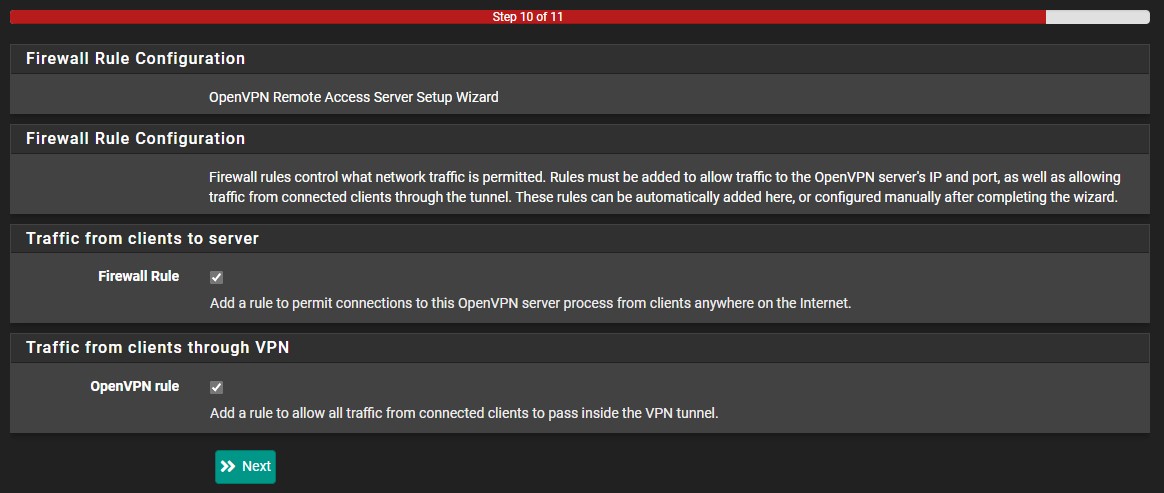
7. At the next screen, ensure that you automatically create the Firewall Rule and the OpenVPN Rule and then select Next. The server configuration is now finished!
OpenVPN Client Export Package & User Accounts
8. Before setting up a pfSense OpenVPN Client, there are two prerequisites that must be completed:
Ensure that you install the openvpn-client-export package from the Package Manager (System > Package Manager > Available Packages).

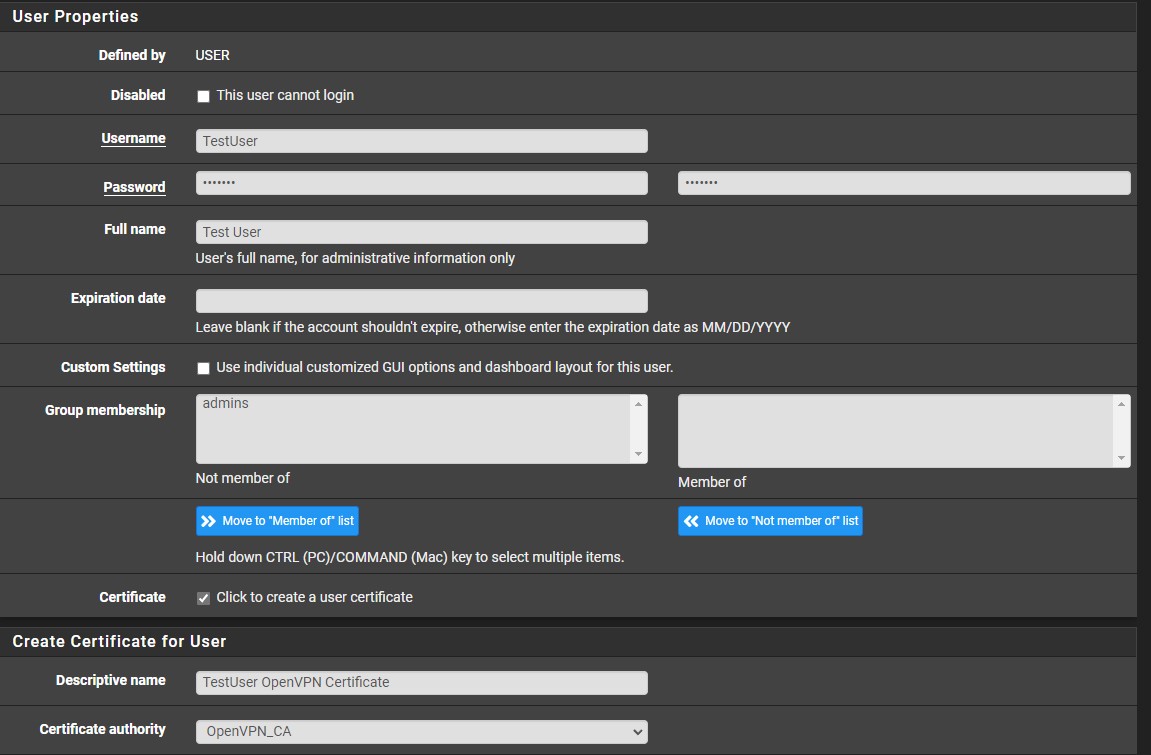
9. Ensure that you have a user account set up with a user-certificate created.
This can be completed by selecting System > User Manager > Add. Select a username and password, then select click to create a user certificate.
Give the certificate a name (generally, Username + OpenVPN Certificate) and ensure that the OpenVPN_CA that we created earlier is selected. Leave the rest as default and save.
Client Configuration: OpenVPN on pfSense
10. Now that the client export tool and user account are created, we can proceed in exporting our configuration file.
In the OpenVPN settings (VPN > OpenVPN), select Client Export. If you have a static external IP address, leave the Host Name Resolution as Interface IP Address. If you have DDNS set up on pfSense, the DDNS hostname will be available in the dropdown list. If you have DDNS set up on another device, select Other and enter in the DDNS hostname. You can then save these settings.
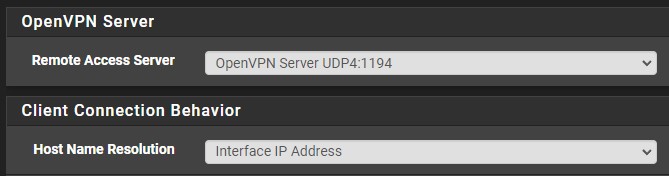
Search for your user and download the OpenVPN configuration file so you can configure it on your computer.
The Inline Configuration (Most Clients) file is widely used.

